8.6 QFile - Step 3

1. 학습 목표
더보기
학습 로드맵:
- Step 1 QFile.open() & QIODevice 플래그 이해하기
- Step 2 콘솔에서 QFile 맛보기 (순수 Python 스크립트)
- ✅ Step 3 PySide6 GUI 프로젝트 만들기 & 기본 창 띄우기
- Step 4 GUI에서 “파일 쓰기/읽기” 버튼 구현
- Step 5 파일 복사 기능까지 확장
파일:
8.6 QFile - Step 3.zip
0.01MB
이 단계에서 목표는:
- 콘솔에서 연습한 QFile 로직을 나중에 붙일 수 있는
“파일 편집기 & 복사 도구”용 GUI 틀만 먼저 만드는 것입니다.
(아직 QFile 로직은 안 붙이고, UI 골격만 완성)
2. 프로젝트 구조
더보기
QFileGuiDemo/
 ├─ main.py              # 프로그램 진입점
 └─ file_widget.py       # 메인 윈도우(위젯) 정의
- main.py
QApplication을 만들고 메인 윈도우를 띄우는 파일 - file_widget.py
텍스트 편집기, 쓰기/읽기/복사 버튼, 경로 입력창 등을 가진 QMainWindow 정의
3. file_widget.py
: GUI 골격 만들기
더보기
# file_widget.py

from PySide6.QtWidgets import (
    QMainWindow, QWidget,
    QVBoxLayout, QHBoxLayout,
    QTextEdit, QPushButton, QLineEdit, QLabel
)


class FileEditorWindow(QMainWindow):
    """QFile 학습용 간단 파일 편집/복사 GUI의 메인 윈도우"""

    def __init__(self, parent=None):
        super().__init__(parent)

        # 윈도우 기본 설정
        self.setWindowTitle("QFile 연습용 파일 편집기")
        self.resize(600, 400)

        # 중앙 위젯 생성 (QMainWindow는 반드시 central widget이 필요)
        central_widget = QWidget(self)
        self.setCentralWidget(central_widget)

        # 전체 레이아웃 (수직 배치)
        main_layout = QVBoxLayout(central_widget)

        # [1] 중앙 텍스트 편집기
        self.text_edit = QTextEdit()
        self.text_edit.setPlaceholderText("여기에 텍스트를 입력하세요...")
        main_layout.addWidget(self.text_edit)

        # [2] 위쪽: 파일 쓰기/읽기 버튼 줄
        button_layout = QHBoxLayout()

        self.btn_write = QPushButton("파일에 쓰기")
        self.btn_read = QPushButton("파일에서 읽기")
        button_layout.addWidget(self.btn_write)
        button_layout.addWidget(self.btn_read)

        main_layout.addLayout(button_layout)

        # [3] 아래쪽: 파일 복사 관련 위젯들
        # 소스 파일 경로 입력
        src_layout = QHBoxLayout()
        src_label = QLabel("원본 파일 경로:")
        self.line_src = QLineEdit()
        self.line_src.setPlaceholderText("원본 파일 경로를 입력하거나, 나중에 QFileDialog로 선택 예정")
        src_layout.addWidget(src_label)
        src_layout.addWidget(self.line_src)

        # 목적지 파일 경로 입력
        dst_layout = QHBoxLayout()
        dst_label = QLabel("복사 대상 경로:")
        self.line_dst = QLineEdit()
        self.line_dst.setPlaceholderText("복사될 파일 경로를 입력할 예정")
        dst_layout.addWidget(dst_label)
        dst_layout.addWidget(self.line_dst)

        # 복사 버튼
        copy_layout = QHBoxLayout()
        self.btn_copy = QPushButton("파일 복사")
        copy_layout.addStretch()
        copy_layout.addWidget(self.btn_copy)

        # 레이아웃들을 메인 레이아웃에 추가
        main_layout.addLayout(src_layout)
        main_layout.addLayout(dst_layout)
        main_layout.addLayout(copy_layout)

        # [4] 버튼 시그널 연결 (현재는 테스트용 print만)
        self._connect_signals()

    def _connect_signals(self):
        """버튼 클릭 시 동작할 슬롯 함수 연결 (테스트용)"""

        self.btn_write.clicked.connect(self.on_write_clicked)
        self.btn_read.clicked.connect(self.on_read_clicked)
        self.btn_copy.clicked.connect(self.on_copy_clicked)

    def on_write_clicked(self):
        """[파일에 쓰기] 버튼 테스트용 슬롯"""
        print("파일에 쓰기 버튼이 클릭되었습니다. (Step 3에서 QFile 로직을 연결할 예정)")

    def on_read_clicked(self):
        """[파일에서 읽기] 버튼 테스트용 슬롯"""
        print("파일에서 읽기 버튼이 클릭되었습니다. (Step 3에서 QFile 로직을 연결할 예정)")

    def on_copy_clicked(self):
        """[파일 복사] 버튼 테스트용 슬롯"""
        print("파일 복사 버튼이 클릭되었습니다. (Step 4에서 복사 로직을 구현할 예정)")
4. main.py
: 실행 진입점 작성
더보기
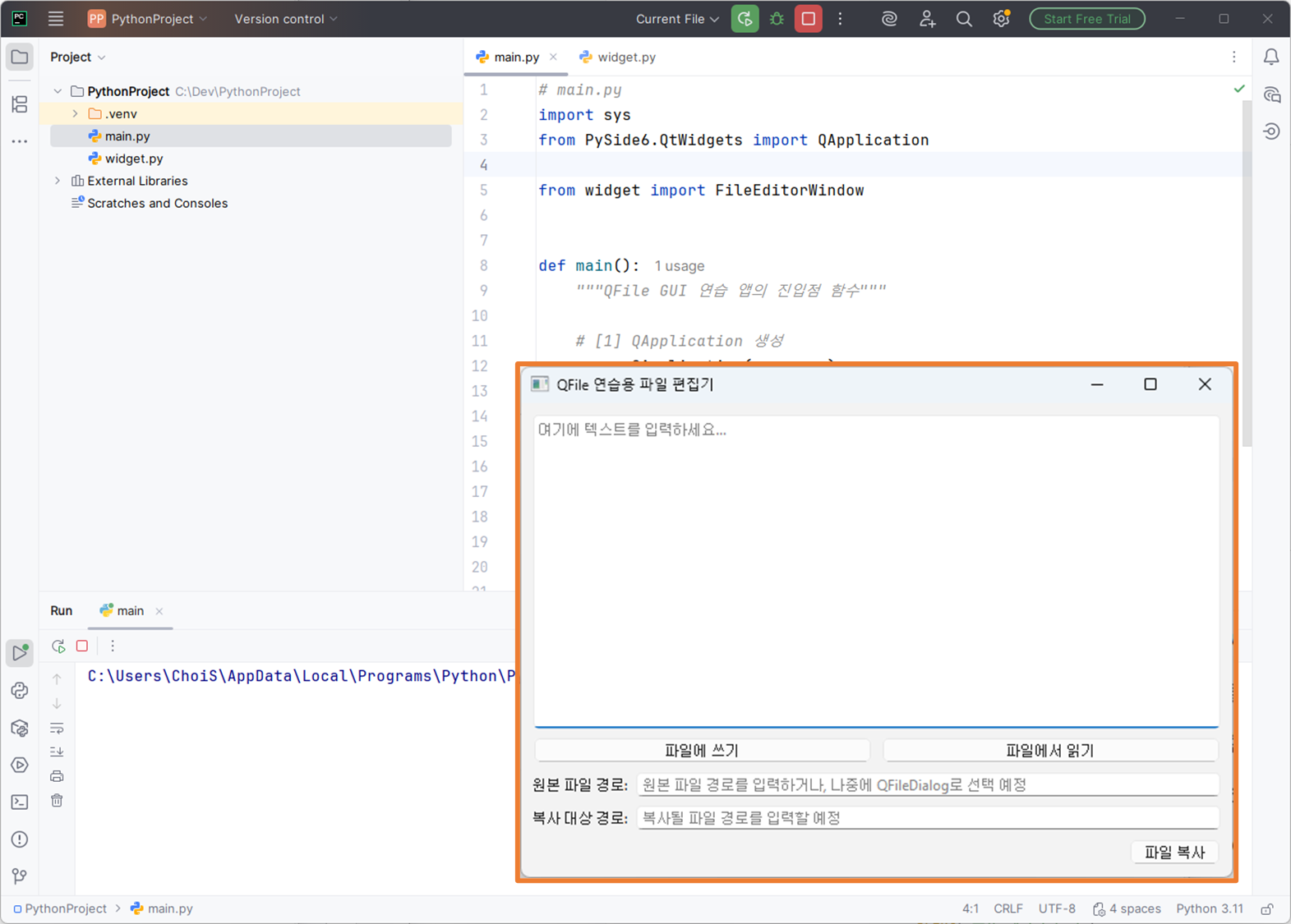
# main.py
import sys
from PySide6.QtWidgets import QApplication

from file_widget import FileEditorWindow


def main():
    """QFile GUI 연습 앱의 진입점 함수"""

    # [1] QApplication 생성
    app = QApplication(sys.argv)
    app.setApplicationName("QFile GUI 데모")

    # [2] 메인 윈도우 생성
    window = FileEditorWindow()
    window.show()

    # [3] 이벤트 루프 실행
    sys.exit(app.exec())


if __name__ == "__main__":
    main()
5. 다음 단계
더보기
지금까지 한 작업은
QMainWindow 구조
- 중앙 위젯(setCentralWidget)을 하나 두고
그 안에서 다시 레이아웃을 구성하는 패턴
위젯 배치
- QVBoxLayout 으로 위에서 아래로 전체 구조를 쌓고
- 안쪽에 QHBoxLayout 으로 버튼 줄 / 라인편집 줄을 나란히 배치
시그널-슬롯 기본 연결
- button.clicked.connect(self.on_xxx_clicked) 구조
- 지금은 단순히 print()만 하지만,
이후 QFile 로직을 그대로 추가할 자리 확보